
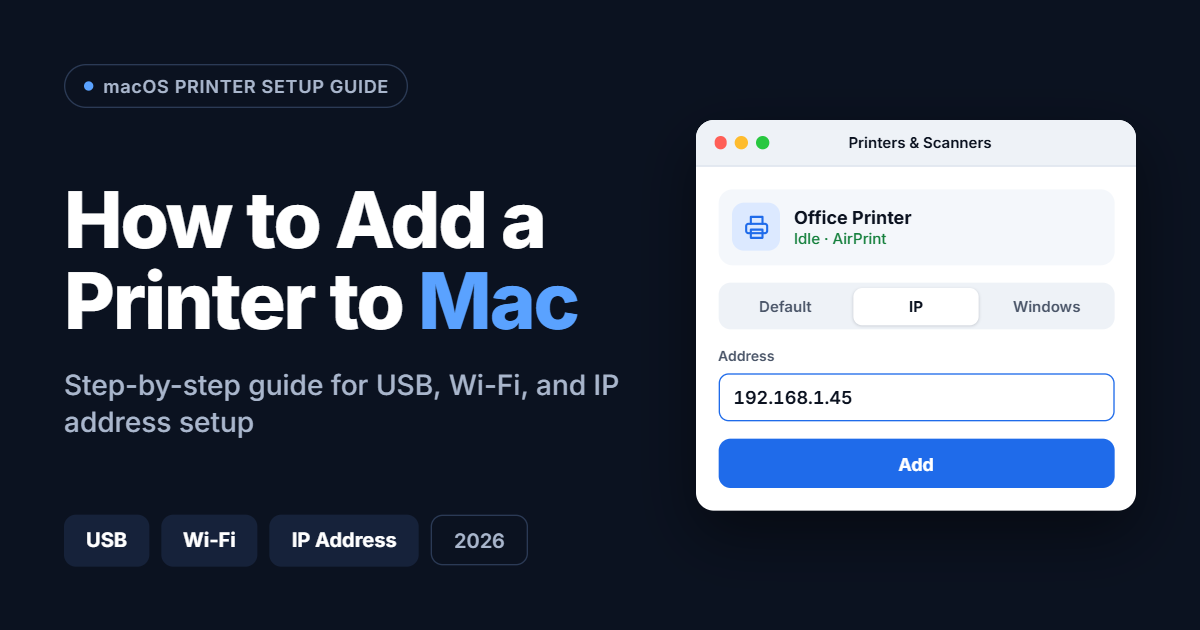
To add a printer to a Mac, open the Apple menu, choose System Settings > Printers & Scanners, click Add Printer, Scanner, or Fax, select your printer from the list, and click Add. Most modern printers connect in under two minutes because macOS uses AirPrint to set them up automatically, with no driver download required.
This guide walks you through every method: USB cable, Wi-Fi, and manual setup by IP address. You’ll also find fixes for the most common problems, like a printer that isn’t showing up or a setup that asks for an admin password you don’t have.
The steps below work on any recent Mac, including MacBook, MacBook Air, MacBook Pro, iMac, and Mac mini, running macOS Tahoe 26, Sequoia 15, or Sonoma 14. If your Mac runs an older version, the same screen is called System Preferences instead of System Settings.
Quick Answer: The 5-Step Version
- Turn on your printer and connect it by USB cable or to the same Wi-Fi network as your Mac.
- Click the Apple menu > System Settings.
- Click Printers & Scanners in the sidebar.
- Click Add Printer, Scanner, or Fax, then select your printer.
- Click Add, then print a test page.
Before You Start: A Quick Checklist
A few minutes of prep prevents most setup problems.
- Power on the printer and make sure it has paper and ink or toner.
- Check the connection type. USB needs a cable. Wireless printers must be on the same Wi-Fi network as your Mac.
- Update macOS. Go to System Settings > General > Software Update. Newer versions fix many printer compatibility issues.
- Know your printer brand and model. You’ll need it if macOS asks for a driver.
- Have your admin name and password ready. Some Macs ask for it when you add a printer. More on that below.
Method 1: Add a Printer to Mac With a USB Cable
This is the simplest method and works for almost every printer.
- Connect the printer to your Mac with a USB cable. If your Mac only has USB-C ports, you may need a USB-A to USB-C adapter.
- Turn the printer on.
- Open the Apple menu in the top-left corner and choose System Settings.
- Click Printers & Scanners in the sidebar. You may need to scroll down to find it.
- Click Add Printer, Scanner, or Fax.
- Select your printer from the list. It usually appears under the Default tab.
- Check the Use menu. If your printer supports AirPrint, choose AirPrint. Otherwise, choose Select Software and pick the model that matches your printer.
- Click Add.
Apple notes that when you add a printer, macOS automatically uses AirPrint to connect to it. If the Use menu doesn’t offer AirPrint, the printer doesn’t support it, and you’ll need software from the manufacturer.
Method 2: Add a Printer to Mac via Wi-Fi
Wireless setup is ideal for home offices and shared printers.
- Connect the printer to your Wi-Fi network. Use the printer’s control panel or its setup app. This step varies by brand, so check the manual if you’re unsure.
- Make sure your Mac is on the same Wi-Fi network. A printer on a guest network or a different band can stay invisible to your Mac.
- Open System Settings > Printers & Scanners.
- Click Add Printer, Scanner, or Fax.
- Wait up to a minute or two. Apple says it can take a short while for your printer to appear in the list.
- Select your printer, confirm the Use setting, and click Add.
Tip: Wireless printers often show up twice, once as a standard network printer and once as AirPrint or Bonjour. Pick the AirPrint or Bonjour entry first, since it needs no extra software.
Method 3: Add a Printer to Mac With an IP Address
Use this method when your printer is on the network but won’t appear in the normal list. It’s also common in offices and schools.
Step 1: Find the printer’s IP address. Check the printer’s control panel under Network, Wireless, or Wi-Fi settings. You can also print a network configuration page from the printer’s menu. The address looks like 192.168.1.45.
Step 2: Add the printer on your Mac.
- Open System Settings > Printers & Scanners.
- Click Add Printer, Scanner, or Fax.
- Click the IP tab (the globe icon).
- Type the printer’s IP address in the Address field. Your Mac will try to gather information about the printer automatically.
- For Protocol, choose Internet Printing Protocol – IPP in most cases. Use Line Printer Daemon – LPD or HP Jetdirect – Socket only if your printer’s manual or your IT team says so.
- Give the printer a name and location if you like.
- Under Use, choose AirPrint or Select Software, then pick the correct driver.
- Click Add.
Method 4: Install a Manufacturer Driver First
Some older printers, and many multifunction models, need the brand’s own software to unlock every feature such as scanning, duplex printing, or ink-level reports.
- Visit your printer maker’s official support page:
- Search for your exact printer model and choose macOS as the operating system.
- Download and run the installer.
- Return to Printers & Scanners and add the printer as described above.
If macOS shows the printer but prints with missing options, Apple recommends removing it and adding it again with different printer software. Control-click the printer in the list, choose Remove Printer, then add it again and pick Select Software from the Use menu.
How to Add a Printer to Mac That Isn’t Showing Up
This is the most common headache. Work through these fixes in order.
- Restart everything. Turn off the printer, your Mac, and your router. Turn them back on in that order, wait two minutes, then try again.
- Confirm both devices share the same network. Check the Wi-Fi name on your Mac and on the printer’s display.
- Turn off your VPN. VPNs can block local network devices.
- Try a USB cable. If the printer appears over USB but not Wi-Fi, the problem is your network, not your Mac.
- Update macOS and the printer firmware. Outdated software is a frequent cause.
- Add it by IP address using Method 3 above.
- Reset the printing system. Control-click any printer in the Printers & Scanners list and choose Reset Printing System. This removes all printers from the list, so you’ll need to add each one again.
- Check router settings. Some routers have “AP isolation” or “client isolation” turned on, which stops devices from seeing each other. Ask your network admin or check your router’s wireless settings.
How to Add a Printer to Mac Without an Admin Password
Many Macs, especially work and school computers, ask for an administrator name and password when you add or change a printer. This is a security setting, and there’s no legitimate way around it on a managed Mac. Here are practical options:
- Ask your IT team or Mac owner to add the printer for you, or to give your account permission to manage printers.
- Use a personal Mac admin account. If it’s your own Mac and you’ve forgotten the password, you can reset it through your Apple Account or Recovery mode. Apple’s support site covers the process.
- Use AirPrint from a supported app. On some setups, an AirPrint printer on your network may appear in the Print dialog without being added manually.
- Print from another method. Many printers have an email-to-print address, or you can print from your iPhone or iPad.
Don’t try to bypass an admin prompt on a computer you don’t own. If your organization restricts printer setup, IT usually has an approved process.
Read: How to Fix Printer Streaks (Guide for Inkjet and Laser Printers)
Frequently Asked Questions
How do I add a printer to a MacBook?
Open System Settings > Printers & Scanners, click Add Printer, Scanner, or Fax, choose your printer, and click Add. The process is identical for MacBook, MacBook Air, and MacBook Pro.
Do I need to download a driver to add a printer to my Mac?
Usually not. Most printers made in the last several years support AirPrint, which works with no extra software. You only need a manufacturer driver for older printers or when you want advanced features like scanning.
Why won’t my Mac find my printer?
The most common causes are a different Wi-Fi network, a VPN, a router with device isolation, or outdated software. Restart your devices, confirm both share one network, and try adding the printer by IP address.
How do I add a printer to my Mac using its IP address?
In Printers & Scanners, click Add Printer, Scanner, or Fax, select the IP tab, enter the printer’s IP address, choose a protocol (usually IPP), pick a driver under Use, and click Add.
Can I add a printer to a Mac without Wi-Fi?
Yes. Connect the printer with a USB cable and follow Method 1. You don’t need a network connection for USB printing.
How do I remove a printer from my Mac?
In Printers & Scanners, Control-click the printer and choose Remove Printer. You can add it again later if needed.
Can I add more than one printer to my Mac?
Yes. Your Mac can store several printers, and you can switch between them in the Print dialog or set one as the default.
Final Thoughts
Adding a printer to a Mac is quick once you know which method fits your setup: USB for simplicity, Wi-Fi for convenience, or IP address for stubborn network printers. Start with AirPrint, which needs no extra software, and fall back to a manufacturer driver only when you need features macOS doesn’t provide.
If you’re still stuck, reset the printing system and start fresh. Most setup issues disappear after a clean re-add.
Sources
- Add a printer to your printer list so you can use it on Mac (Apple Support)
- Update your printer software if your printer has a printing problem on Mac (Apple Support